
Google Sheets Import JSON: An Actionable Guide
Learn to Google Sheets import JSON from any API. This guide covers custom scripts, Apps Script, and add-ons with actionable, real-world examples.
Getting JSON data into Google Sheets can feel like a puzzle. You could use the built-in =IMPORTDATA function, but that only works for the simplest CSV or TSV files. For anything more complex, like nested data from an API, you'll need something more powerful.
That’s where tools like Google Apps Script come in, letting you write custom functions to handle tricky data. However, for most users, a popular open-source script like IMPORTJSON hits the sweet spot between power and simplicity. It lets you pull data directly from APIs into a sheet with just one formula, turning your spreadsheet into a live dashboard.
Why Bother Importing JSON Data into Google Sheets?
Manually copying and pasting data from an API or another web service is a surefire way to waste time and introduce errors. Automating the process by setting up a direct JSON import offers significant advantages.
Key Benefits of Automation:
- Real-Time Data: Your sheet can refresh automatically, providing live data without manual intervention. This is a game-changer for a crypto trader tracking wallet performance or a marketer monitoring live campaign results.
- Increased Accuracy: Automation removes the risk of typos and other human errors that occur during manual data entry, making your data far more reliable.
- Time Savings: Stop spending your day on tedious data collection. Instead, focus on what the data is actually telling you. A project manager could get automatic task updates from a JSON feed instead of chasing down the team every morning.
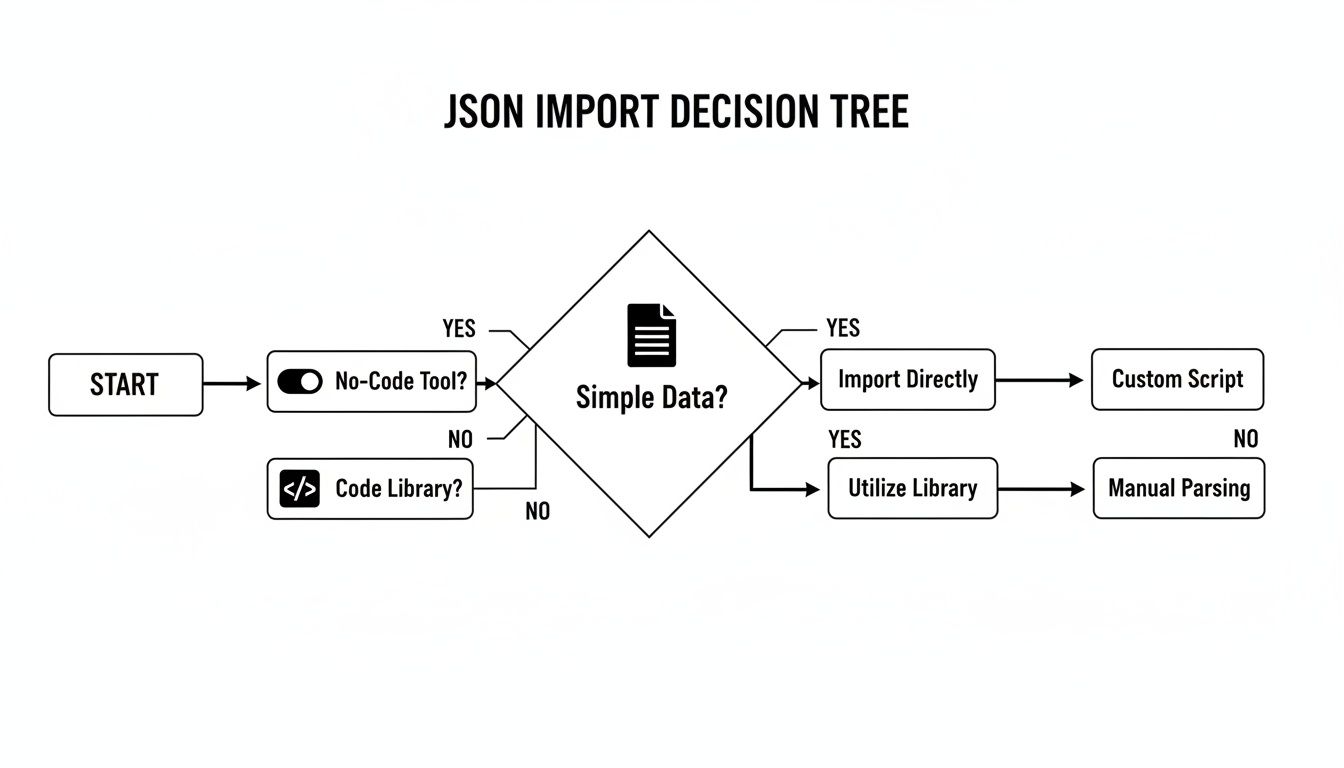
Choosing the right method depends on your data's complexity and your technical comfort level. This decision tree is a great way to visualize your options.
Start tracking smart money today
Join thousands of traders using WalletFinder.ai to find profitable wallets and copy their trades.
Start Free Trial →

